 Clubbo
How Clubbo works.
Everything explained, from starting your club to line-ups, stats and the fine pot. Each part says who it is for.
Contents
Starting your clubInstalling Clubbo as an appYour profile: photo and settingsInviting teammatesRoles: player, coach and boardPlanning trainings and matchesEditing, cancelling or deletingAnswering attendanceAway for a while or injuredReminders and notificationsPicking the line-up for a matchCaptainsDuties: who washes the kit?Carpooling to away gamesFilling in results and statsPlaying time and guest playersParents and childrenSyncing your own calendarEvents with sign-upExporting to ExcelLeaderboard and badgesMessage board and translatingChat per activityFine potMembership feesPaying with PayconiqClub settingsSeveral teams in one clubFree and ClubLanguageStarting your club
Clubbo runs in the browser on phone, tablet and laptop. There is nothing to download from an app store.
- Go to clubbo.be and tap Start free.
- Create an account with your name, your e-mail address and a password of at least 8 characters.
- Choose Start your own club, fill in the club name, the town and two club colours and tap Create club.
- You land in your club straight away. A short tour shows the main screens.
Whoever creates the club is player, coach and board at the same time. Hand those roles to the right people later.
Installing Clubbo as an app
Put Clubbo on your home screen or in your dock. It then opens like a normal app, without the address bar, and on iPhone this is the only way to get push notifications.
iPhone and iPad
Use Safari.
- Open clubbo.be/app in Safari and log in.
- Tap the Share button at the bottom, the square with the arrow pointing up.
- Scroll down and choose Add to Home Screen. Then tap Add.
- From now on, open Clubbo with the icon on your home screen.
Android
Use Chrome.
- Open clubbo.be/app in Chrome and log in.
- Tap the three dots at the top right.
- Choose Install app or Add to home screen and confirm.
Laptop or computer
With Chrome or Edge on Windows and Mac, or Safari on a Mac.
- Chrome: open clubbo.be/app and click the Install icon on the right of the address bar (a small screen with an arrow). Don’t see it? Click the three dots, Cast, save and share and Install page as app.
- Edge: click the three dots, Apps and Install this site as an app.
- Safari on Mac: in the menu bar choose File and then Add to Dock.
- Clubbo then sits among your apps and opens in its own window.
Your profile: photo and settings
Tap your photo at the top right (phone) or your name at the bottom left (laptop) to open My profile. That is where you change everything about yourself.
- Photo: tap your avatar and pick a photo. Your teammates see it next to your name. Parents can also choose their child’s photo here.
- Name and, under In this team, your shirt number, position and phone number.
- Language, Notifications, Calendar sync and My children.
- Change password, switch between your clubs and log out.
Tap a name under Team or in the Ranking to see a teammate’s profile: photo, shirt number, position, attendance, stats and badges for this season. Calling or WhatsApp is one tap away.
Inviting teammates
- Open Team. Your team’s invite code is at the top.
- Tap WhatsApp to post the link in the group chat, or Copy link.
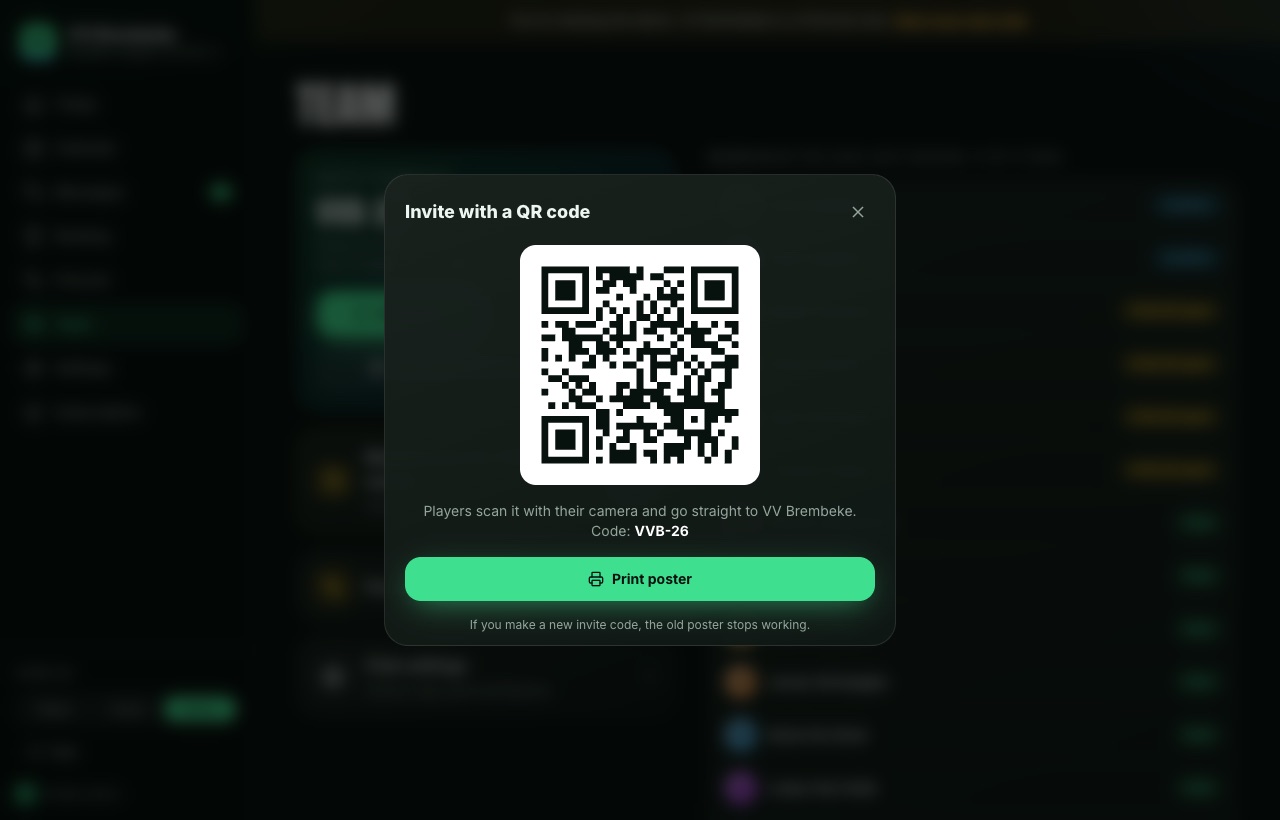
- For the dressing room: tap QR code for the dressing room and then Print poster. Players scan the code with their camera.
- New members create an account and land in the right team straight away.
Is an old code hanging somewhere it shouldn’t? The board creates a new one in Club settings. The old code then stops working.
Roles: player, coach and board
- Open Team and tap a member’s name.
- Switch roles on or off and fill in shirt number, position, role title and phone number if you like.
- Player: answers attendance, rides along or drives, reacts on the message board and pays fines and membership fees.
- Coach: plans trainings and matches, picks the line-up, corrects attendance, fills in results and stats and posts official messages.
- Board: everything a coach can do, plus fines, membership fees, club settings, roles, teams and the subscription.
- Parent: follows one or more children in the team and answers for them. See Parents and children.
Got more than one role? Switch with View as (at the top on a phone, bottom left on a laptop) to see what a player or coach sees. There is always at least one board member left.
Planning trainings and matches
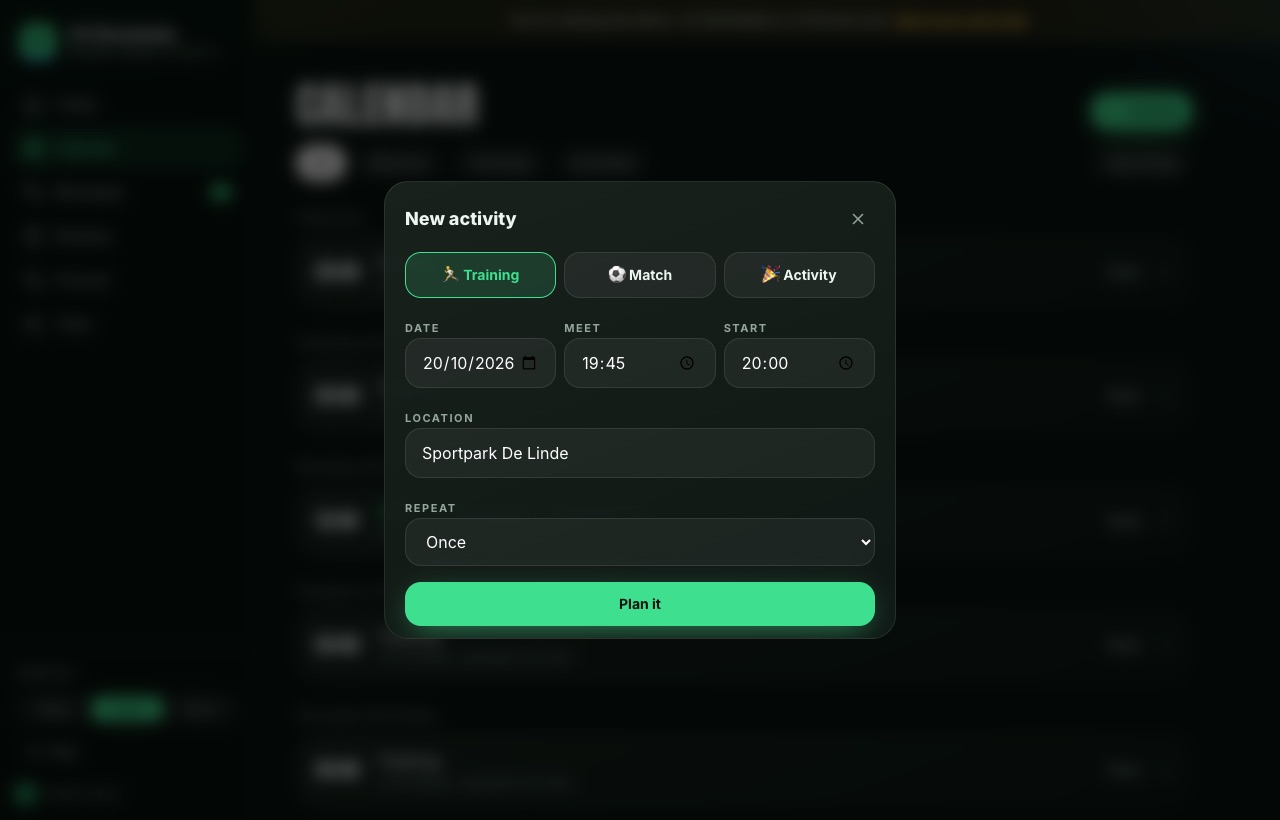
- Open Calendar and tap + Activity.
- Choose Training, Match or Activity, for the team party for example.
- For a match, fill in the opponent and choose home or away. Carpooling appears by itself for away games.
- Pick the date, the meeting time, the start time and the location.
- Weekly training? Pick every week under Repeat, for 4, 8 or 12 weeks.
- Tap Plan it. Everyone sees the activity right away and can answer.
The meeting time and the answer deadline come from the defaults in Club settings. Set them up once.
Editing, cancelling or deleting
Rain, a moved match or a typo: open the activity. Below the details there are three buttons for the coach and the board.
- Edit: change the date, time, meeting time, place or opponent. Leave Tell the team on and everyone gets a push when the time or place changes. Anyone away for a period is set right again on the new day.
- Cancel: add a reason if you like, a frozen pitch for example. The activity stays crossed out in the calendar, everyone gets a notification right away and the reminders stop. Going ahead after all? Tap Restore.
- Delete: for an activity that should never have been there. Replies, line-up, carpool and chat go with it.
You can also edit a match that has been played, a wrong time or another place for example. The score and stats stay and the team gets no notification.
Answering attendance
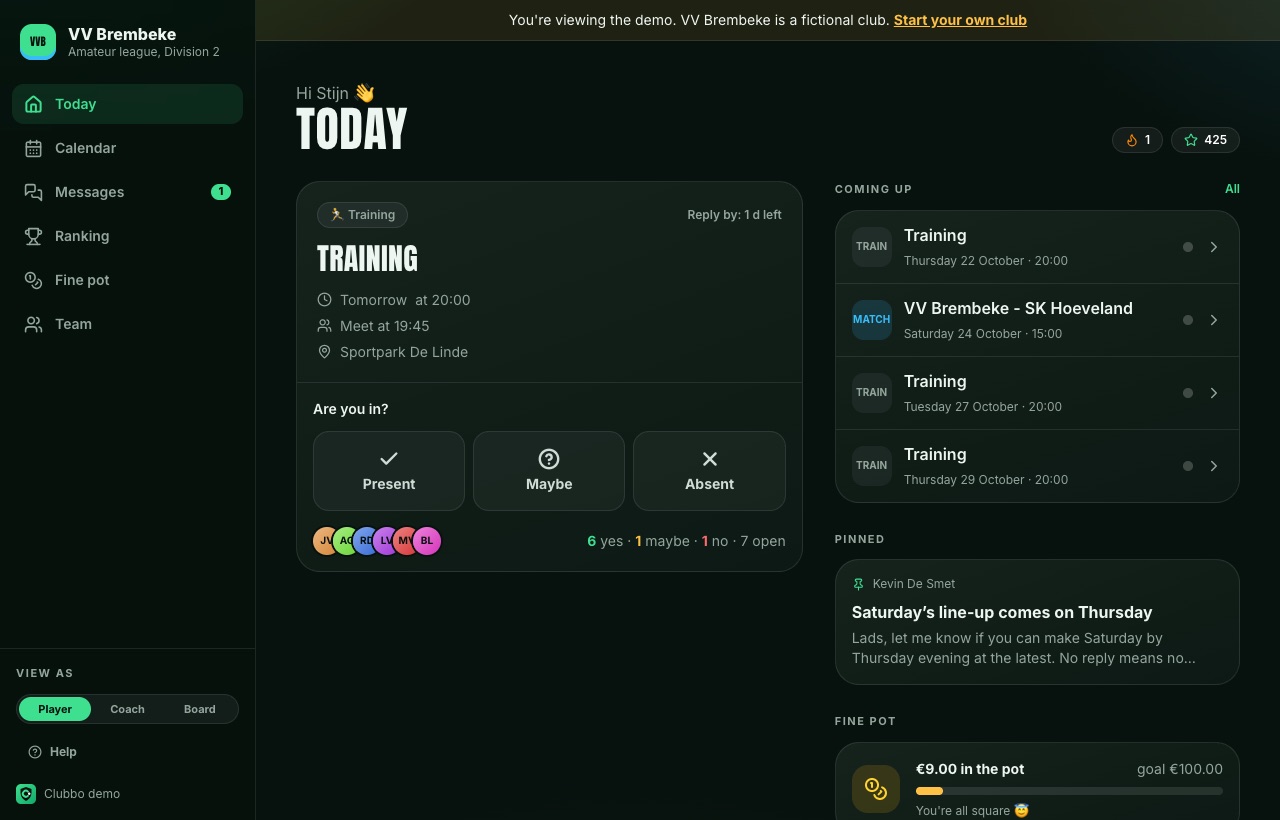
- Open Today. The next activity is at the top.
- Tap Going, Maybe or Not going. When you can’t come you can add a reason.
- Changed your mind? Tap another answer, until the activity starts.
Answer before the deadline and you earn points for the leaderboard.
Away for a while or injured
On holiday, exams or an injury? Say it once instead of for every training.
- Open My profile and go to Away or injured.
- Tap Add an absence, pick the first and the last day and a reason if you like.
- Everything in that period is set to not going right away, also activities the coach plans later. You get no reminders for them.
- Injured? Tap Report next to Injured, with what happened and when you expect to be back. Fit again? Tap Fit again.
- The coach sees an injured player in the line-up and in the team by a 🤕.
- Parents do the same for their child, under the child’s name. The coach can fill it in for a player too: tap the pencil next to the name under Team.
- Coming after all? Just give another answer for that activity. That wins over the absence.
Reminders and notifications
- Open My profile and go to Notifications.
- Switch on Push notifications on this device and allow notifications when your browser asks. Do this on every device you use.
- No more e-mails? Switch off Email reminders, or click the unsubscribe link at the bottom of an e-mail.
- Automatic: anyone who hasn’t answered a day before the deadline gets a push notification and an e-mail. The e-mail has Yes and No buttons that answer right away.
- Remind them yourself (coach): open the activity. Under Replies there is a button to remind the players without an answer on WhatsApp, with their names.
- You also get push notifications when you’re in the line-up and for official club messages.
- Two hours before: if you said going or maybe, you get a notification with the time, the meeting time and the place.
- Moved or cancelled: when the time or place changes, or an activity is called off, the whole team hears it right away.
- For the coach: a push button to wake up those who haven’t answered, a warning 2 days before a match with too few players and a reminder the day before the match when the line-up isn’t out yet.
On iPhone, push notifications only work when Clubbo is on your home screen. See Installing Clubbo as an app.
Picking the line-up for a match
You pick the line-up per match. You choose who starts and who is on the bench, and you only publish it when you’re ready. Until then nobody sees it.
- Open the match in the Calendar or from Today.
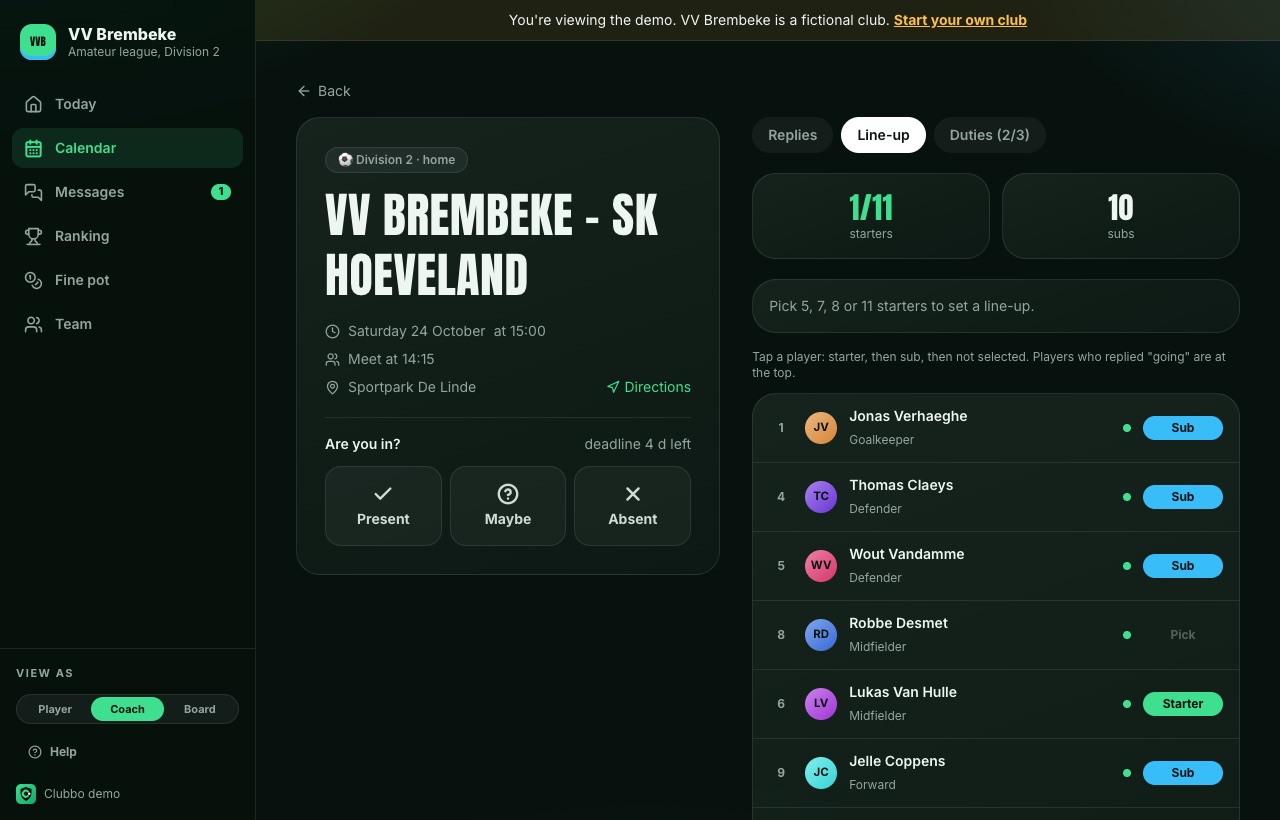
- Tap the Line-up tab. At the top you see how many starters (out of 11) and subs you picked so far.
- Players who answered Going are at the top with a green dot.
- Tap a player. One tap makes him a Starter, another tap a Sub, another tap takes him out of the line-up.
- Happy with it? Tap Publish line-up.
- Every player sees the line-up on the match. Those in it read whether they start or are on the bench.
- An official message appears on the message board.
- The selected players get a push notification.
Late drop-out? Change the line-up and tap Publish again.
Formation on the pitch
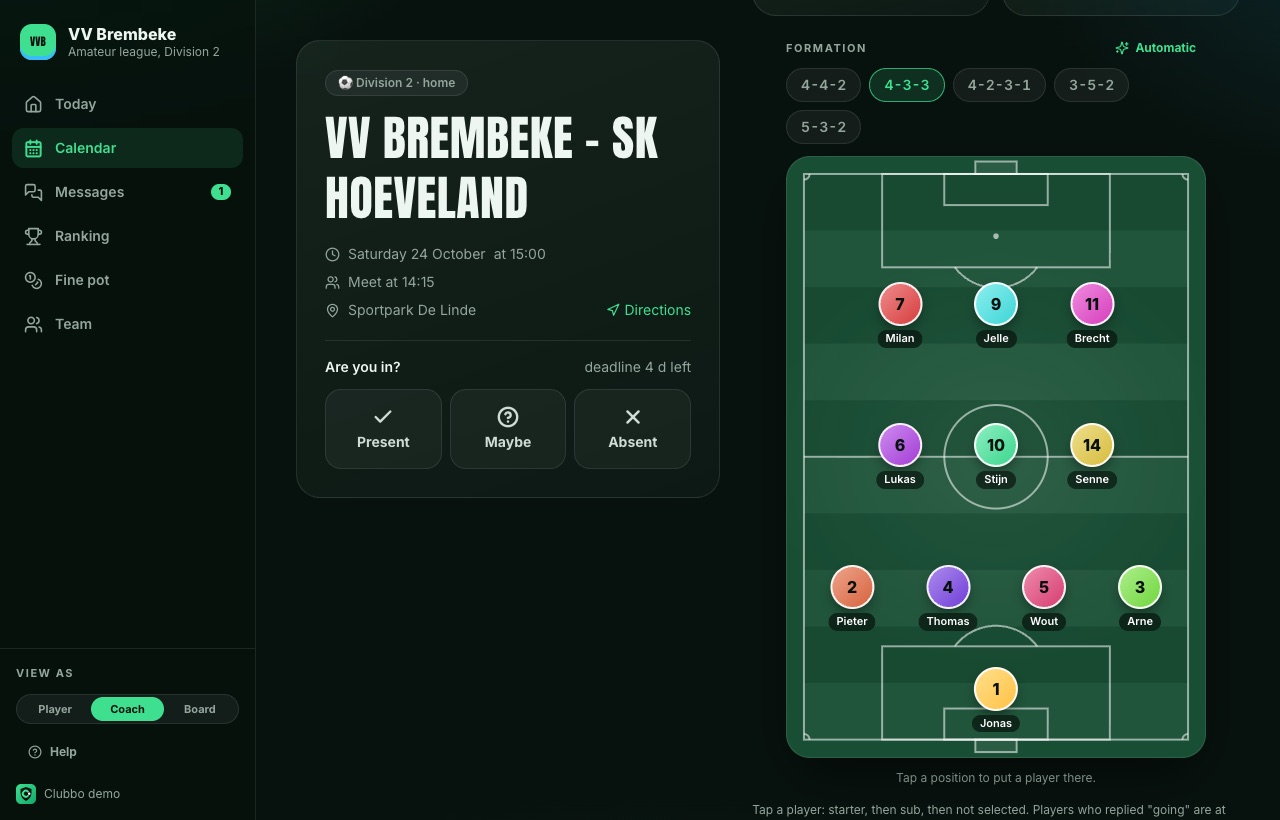
As soon as you picked the starters, a pitch appears. This is how you put them in place:
- Pick a formation, like 4-4-2, 4-3-3 or 3-5-2. Smaller teams get formations with 5, 7 or 8 players.
- Tap Automatic: Clubbo puts every player in a spot that fits his position.
- Want to move someone? Tap a spot and pick the player. If he was somewhere else, they swap places.
- After publishing, the players see the pitch with their spot on it.
Captains
Set up to three captains, in order. If the first one isn’t there, the second wears the armband, otherwise the third.
- Open Team and go to Captains.
- Choose captain 1, 2 and 3. The arrows change the order.
- For every match Clubbo takes the first one in the order who starts. You see him with a yellow C in the line-up and on the pitch.
- Want someone else for one match? Pick him from the Captain list in the line-up. Automatic goes back to the order.
The captain gets a notification of his own when the line-up is published: you wear the armband.
Duties: who washes the kit?
For every activity someone else takes a duty: washing the kit, bringing fruit, running the line. Whoever has a duty gets a reminder the day before.
- The board picks the duties in Club settings, Duty rota: an emoji, a name and which activities they belong to.
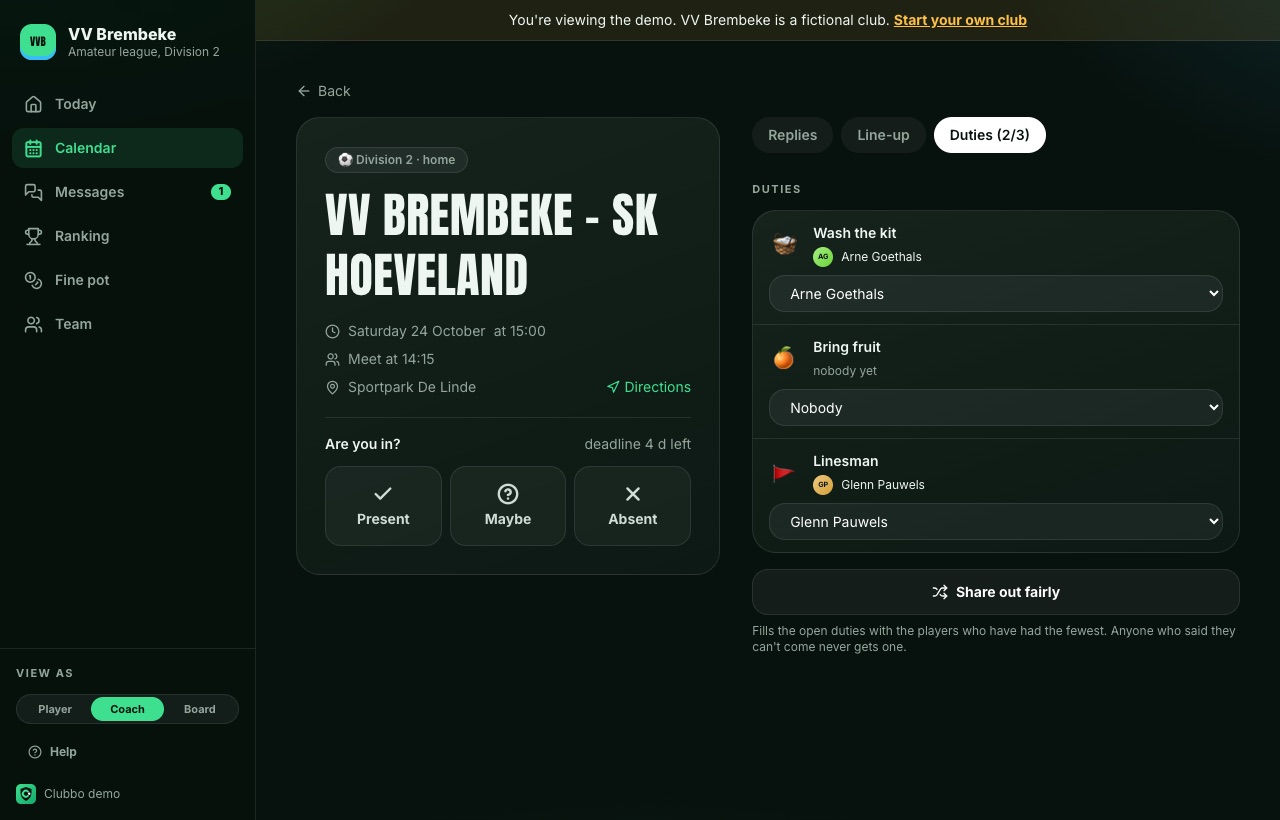
- Open a match or training and tap the Duties tab.
- Coach or board: pick who does each duty, or tap Share out fairly. Clubbo then picks whoever did the fewest this year, and never someone who said they are not coming.
- Player: is a duty still open? Tap I’ll do it. Can’t make it after all? Tap Drop out.
On Today you always see which duties you (or your child) have coming up.
Carpooling to away games
- Open an away game and tap the Carpool tab.
- Driving? Tap I’ll drive and choose where you leave from, the time and how many seats you have.
- Need a lift? Tap Ride along with a driver who has a seat.
Filling in results and stats
After the match you fill in the score and, per player, the goals, assists and cards. You can do this once the kick-off time has passed.
- Open the played match in the Calendar, under Past.
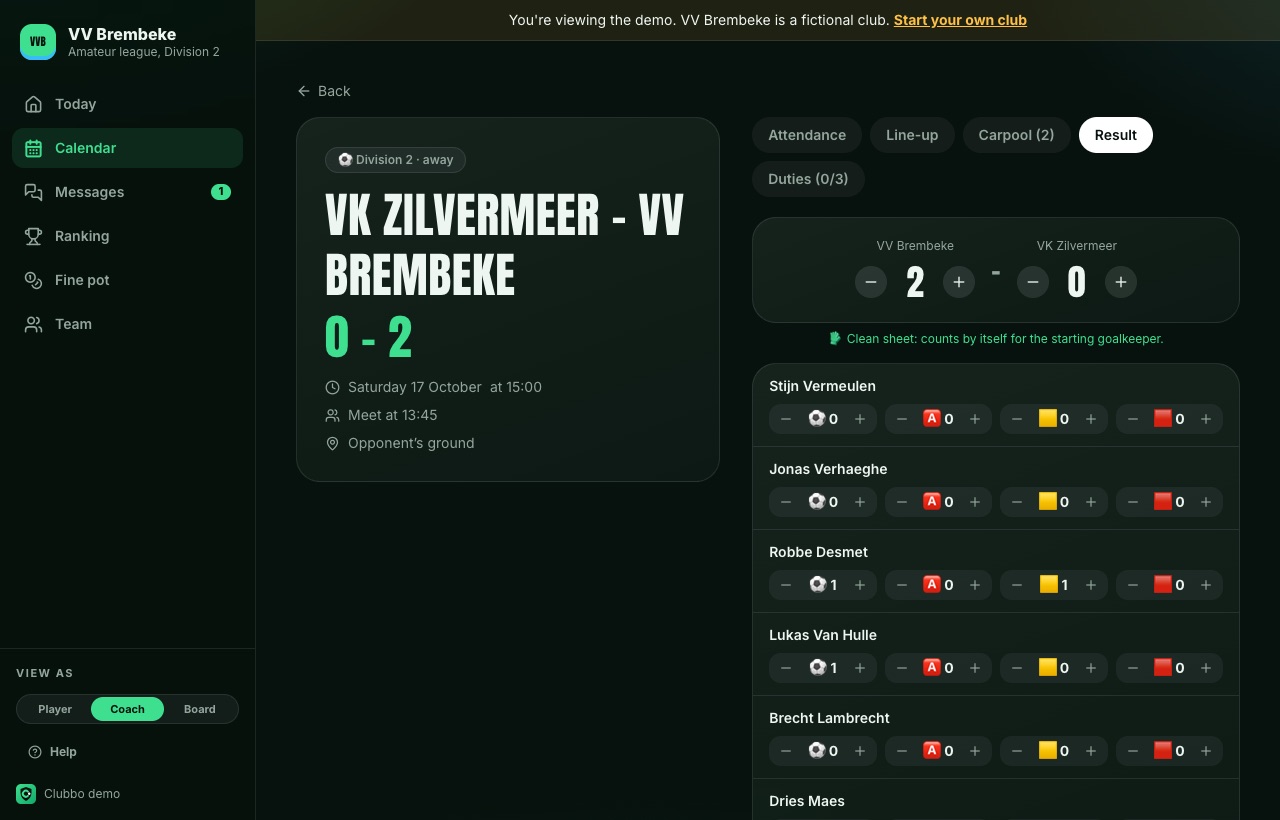
- Tap the Result tab and then Fill in result.
- Set the score with plus and minus. Your club is on the left, the opponent on the right.
- Count per player with plus and minus: ⚽ goals, 🅰️ assists, 🟨 yellow cards (up to 2) and 🟥 red card (up to 1).
- Tap Save.
- The list shows the players from the line-up or who were there. Without a line-up or attendance you see every player.
- 🧤 Clean sheets count by themselves. If your team conceded no goals, the goalkeeper gets a clean sheet: the player in goal on the pitch, or else the only goalkeeper in the starting line-up. Without a line-up the goalkeeper who was there counts, if there was only one. So make sure your keepers have the Goalkeeper position under Team.
Made a mistake? Tap Edit result and stats. You can always correct it.
Attendance after the activity
Open a past training or match. Under Attendance, tap a player to set whether he was really there. That counts for the leaderboard and the stats.
Player of the match
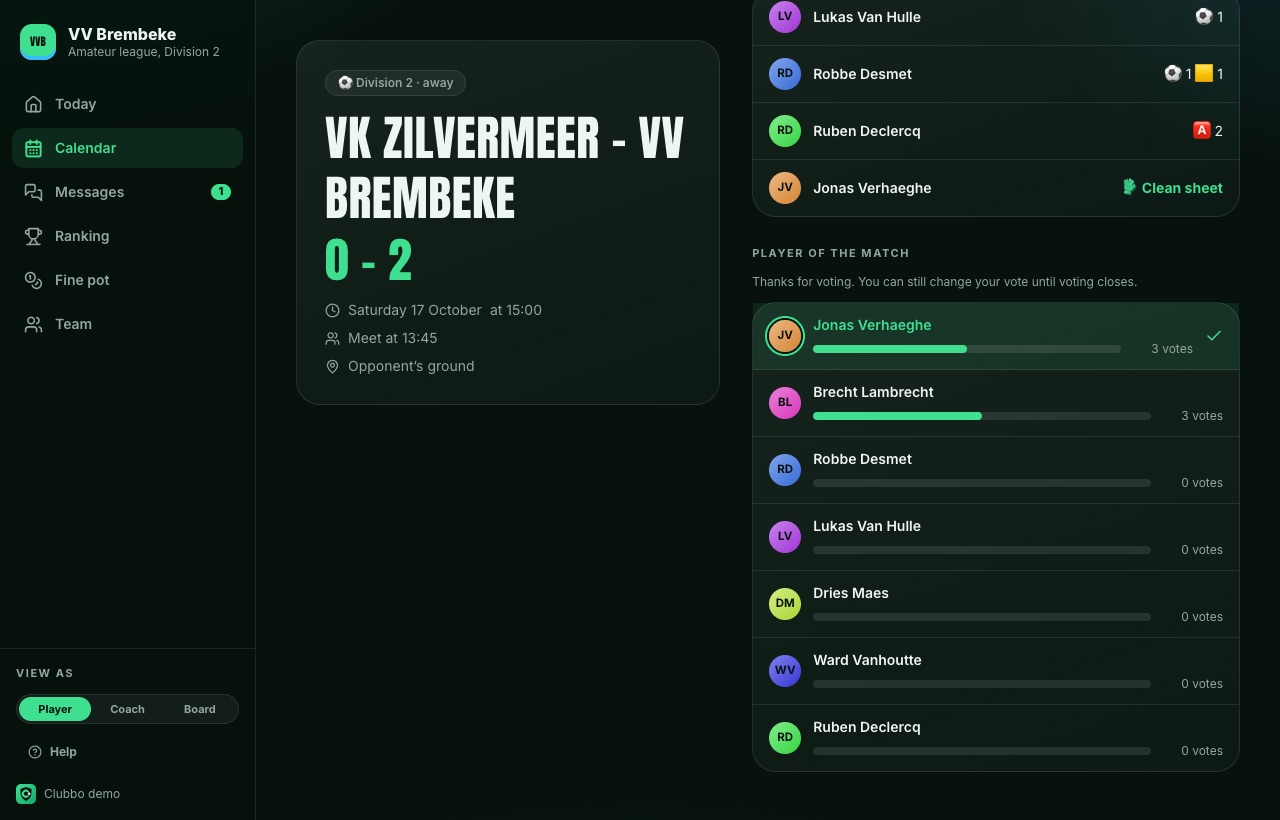
After every match the players and staff vote for the best player, on the Result tab. A few hours after the match everyone who played gets a notification. You can vote until 4 days after the match, but not for yourself. You only see the score once you voted. The winner gets 🏅, 15 leaderboard points and counts in the season stats. Player of the match is part of Club.
Season stats
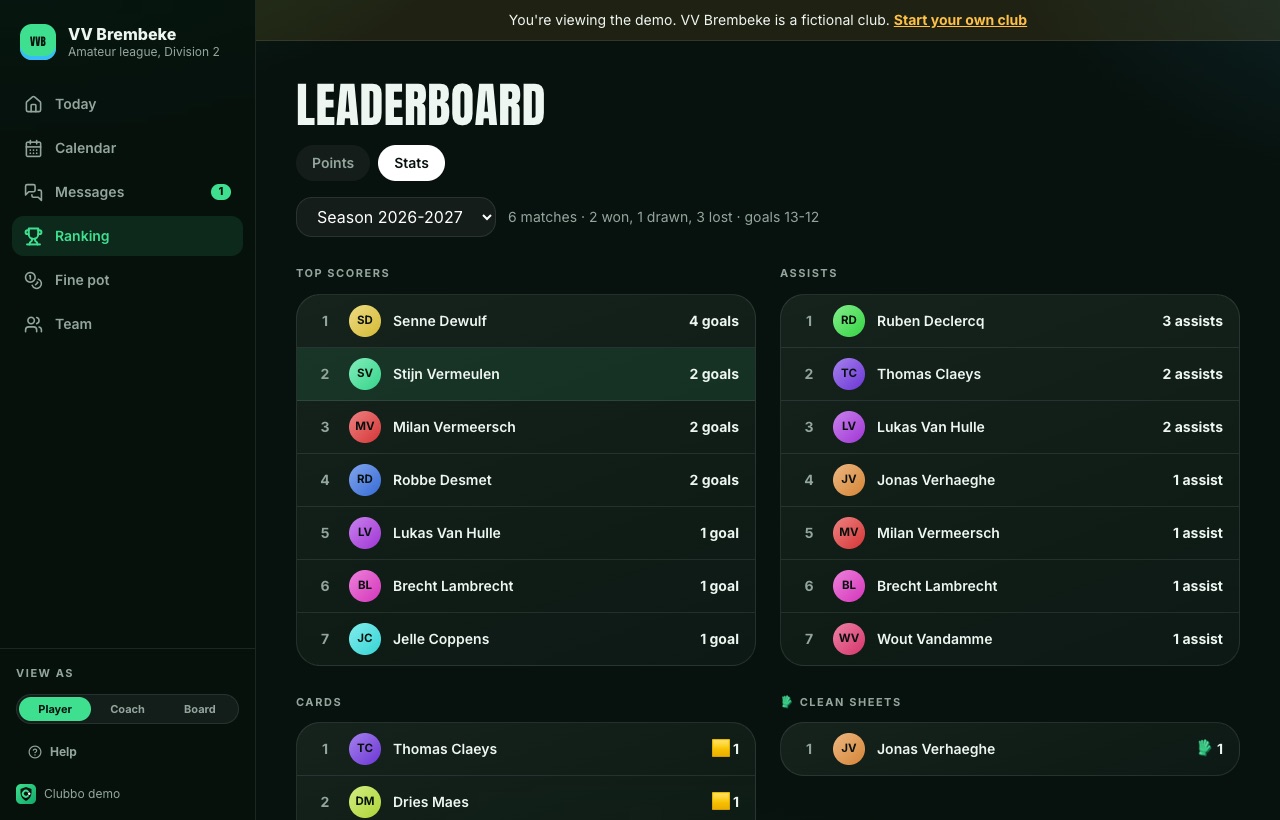
Open Ranking and tap Stats. You see the top scorers, assists, cards and clean sheets, and the season record: won, drawn, lost and goal difference. A season runs from 1 July to 30 June. Pick an earlier season in the drop-down.
Playing time and guest players
Fair playing time matters, especially in youth teams. Clubbo keeps the minutes per player and shows who played least.
- Open the match afterwards, tab Result, and tap Fill in result.
- Tap Starters 90′, subs 0′ to fill in everything at once and then only correct the substitutions. Set the length of a match in Club settings.
- For the next line-up, sort by Least played. Next to each player you see his minutes this season.
- Guest player: when the club has several teams, tap Guest player in the line-up and pick a player from another team. He gets a notification with the time and place when you publish.
- The minutes also show on the player’s profile, with the stats.
Parents and children
For youth teams: a child needs no account or e-mail address of its own. The parent follows the child, answers for it and gets the reminders and notifications. Two parents can follow the same child.
- Open the team’s invite link and create an account for yourself.
- Choose My child plays and fill in your child’s name.
- Your child is now among the players. On Today and on every activity you answer for your child.
- Another child or the other parent? Go to My profile, My children. Add a child there or share a link with the other parent.
Parents don’t count towards the 25 members of the free plan, their children do.
Syncing your own calendar
All trainings, matches and activities of your teams (and your children’s) appear in Google Calendar, Apple Calendar or Outlook. Changes come along by themselves.
- Open My profile and go to Calendar sync.
- Tap Google Calendar or Apple Calendar / Outlook and confirm in your calendar app.
The link is personal. Shared it by mistake? Make a new link. The old one then stops working. Google Calendar sometimes refreshes only once a day.
Events with sign-up
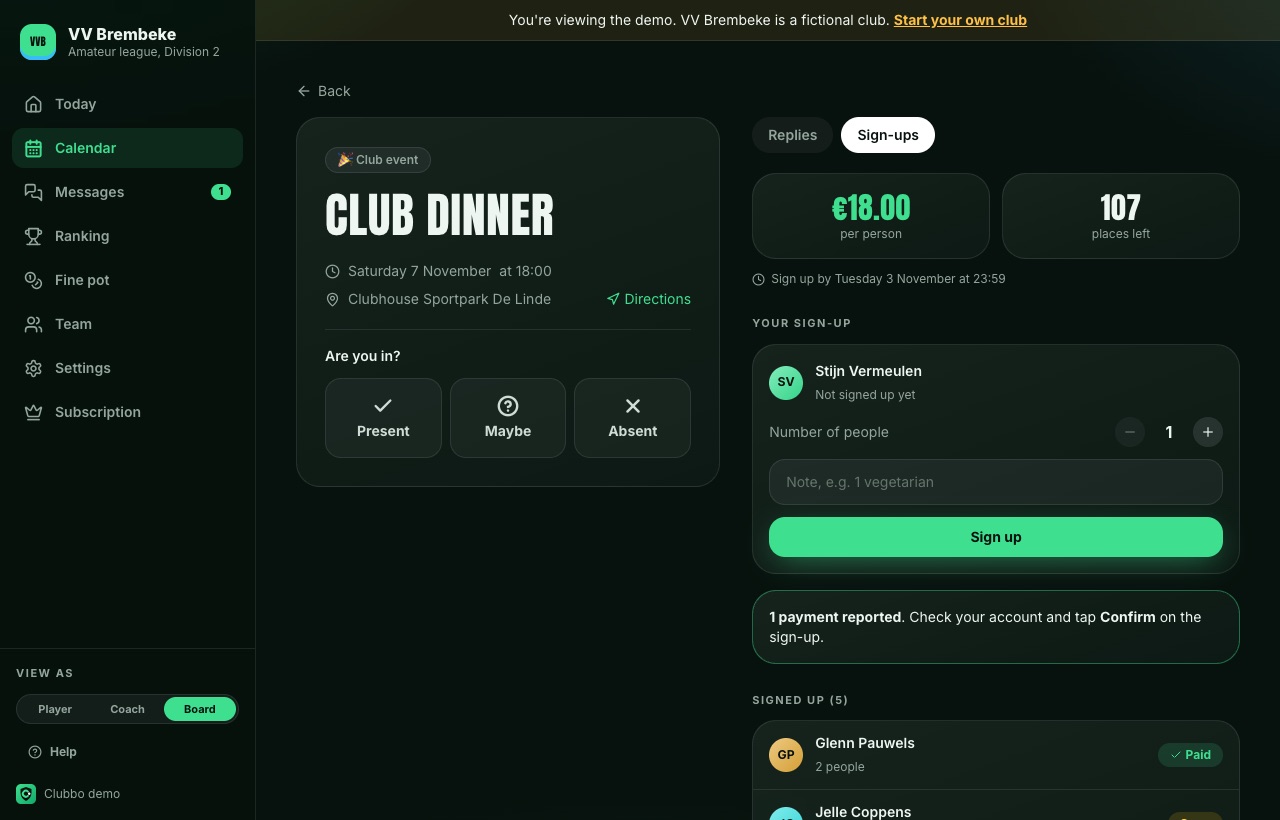
Team party, club dinner or tournament: members sign up, say how many people they bring and pay right away with the QR code.
- Open Calendar, tap + Activity and choose Activity.
- Switch on Sign-up and fill in the price per person (0 is free), optionally a maximum number of places, a deadline and whether members may bring guests.
- Members open the activity, Sign-ups tab, choose how many people come, add a note (vegetarian, for example) and tap Sign up.
- They pay with Pay and the QR code. The board sees who paid and confirms reported payments.
Download the list of all sign-ups, the number of people and who paid under Team, Export.
Exporting to Excel
Under Team, Export you download files that open straight in Excel:
- the member list with e-mail, phone, shirt number, position and whether the fee is paid
- all fines, paid and open
- attendance per member for this season
- the stats per player for this season
- the sign-ups for events
Leaderboard and badges
- +10 for every answer before the deadline
- +20 for every training you attended
- +25 for every match you attended
- +15 per trip as a driver to an away game
- +15 when you are player of the match
You earn badges along the way, such as Always there (present 5 times in a row), Driver and Iron man (90% attendance). Attendance only counts once the coach confirms it after the activity.
Message board and translating
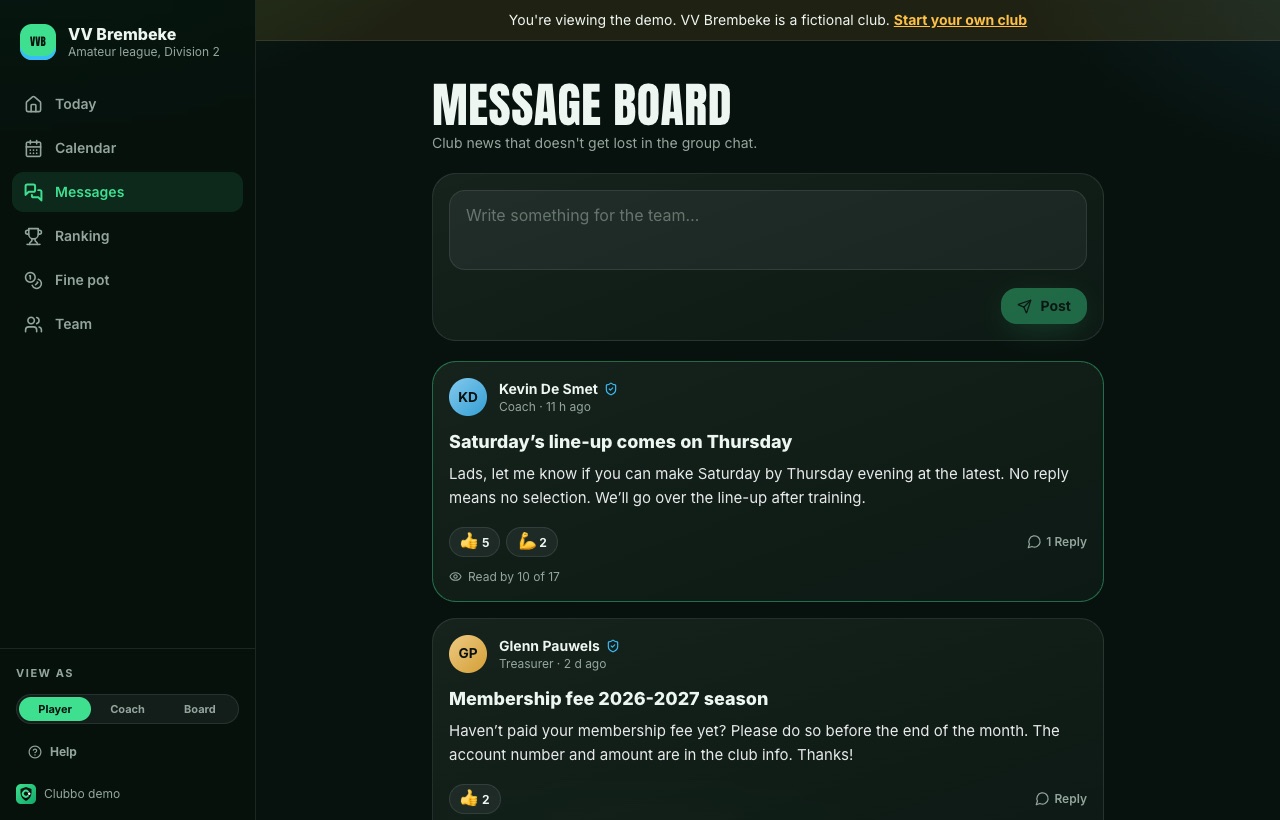
- Open Messages, write your post and tap Post.
- Coaches and the board can make a post Official and Pin it. Official posts show who has read them.
- React with an emoji or tap Reply to write something.
- Is a post in another language? Tap Translate. Tap Show original to go back.
Translating is free. In Chrome it happens on your own device, otherwise through a translation service.
Chat per activity
Ten minutes late, leaving early or who brings the balls? Post it under the activity itself, so it doesn’t get lost in the group chat.
- Open the activity and choose the Chat tab.
- Type your message and tap the arrow.
The coach and whoever said going or maybe get a notification. The chat closes two weeks after the activity.
Fine pot
- In Club settings, Fine pot, set the goal of the pot and the rates. Tap Save rates.
- Giving a fine: open Fine pot, tap + Fine, pick the player and the reason.
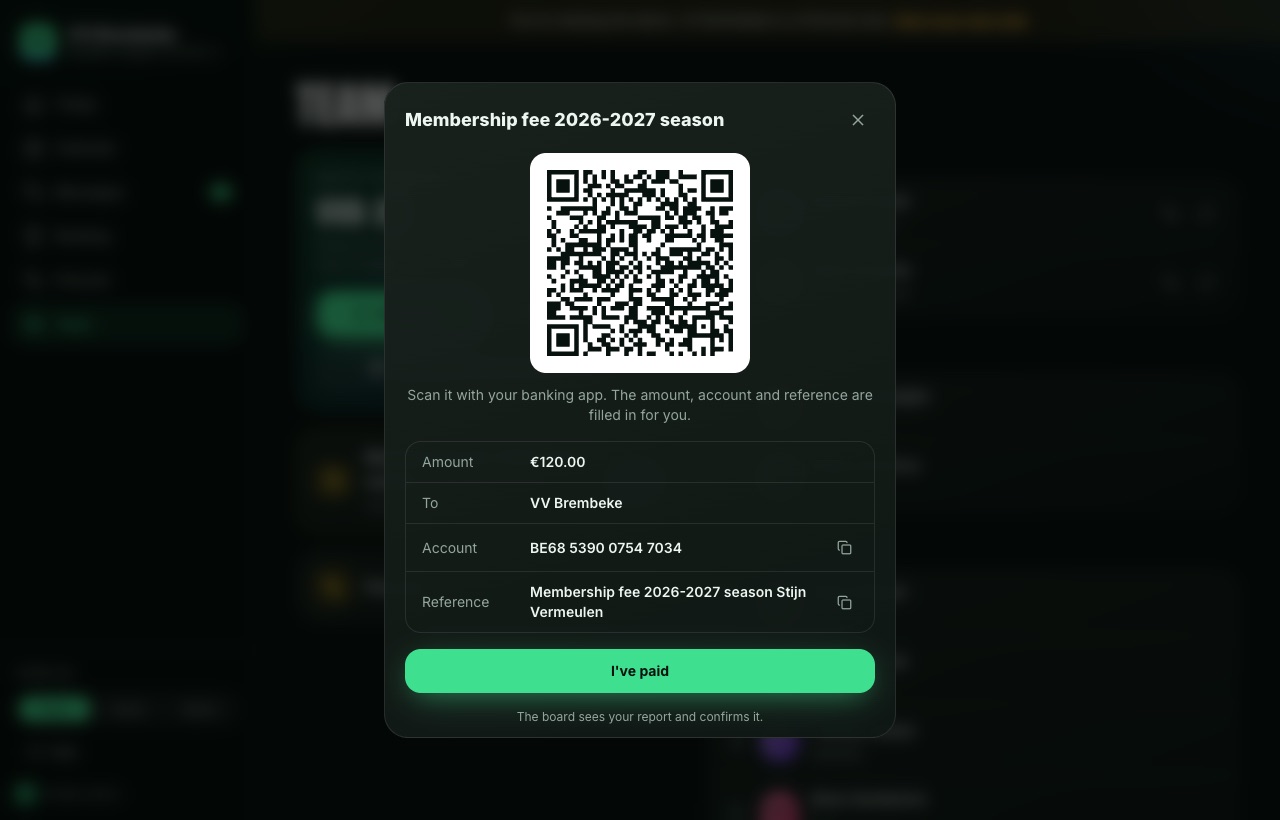
- The player pays in the app: Pay, scan the QR code with the banking app and then I’ve paid.
- A reported payment shows Confirm. Tap it once the money is in the account.
Don’t want to check every payment? In Club settings, Payments and membership fees, turn on the option to count reports as paid right away.
Membership fees
- In Club settings, Payments and membership fees, fill in the account number (IBAN) and the name. Tap Save account.
- Below that, fill in the amount and the description, for example Membership fee 2026-2027.
- Every member sees the fee under Team and pays with Pay: scan the QR code, pay, I’ve paid.
- The board sees under Team who paid, who reported a payment and who is still open. Tap a member to switch between paid and open.
The money goes straight to the club’s account. Clubbo is not in between and charges nothing.
Paying with Payconiq
With Payconiq by Bancontact, members pay fines, fees and sign-ups in their banking app and Clubbo ticks the payment off by itself. The board no longer has to check anything.
- Apply for a merchant account for the club at Payconiq. The money goes straight to the club’s account.
- Open Club settings, Payments and membership fee, and tap Link next to Payconiq.
- Paste the API key from the Payconiq merchant portal. Clubbo keeps it on the server and never shows it again.
- From now on members see Pay with Payconiq at the top of the payment screen. On a phone their banking app opens, on a laptop they scan a QR code.
The usual bank QR code stays below it, for anyone who prefers a transfer.
Club settings
- Club: name, short name, town, league and the logo (logo in Club).
- Club colours: a main colour for buttons and the crest, and a second colour for accents. The whole app follows.
- Defaults: home ground, address for the directions button, how early to meet, the answer deadline, the minimum number of players per match (for the warning to the coach) and how long a match lasts (for playing time).
- Features: switch off the leaderboard, carpool or fine pot if you don’t use them.
- Invite code: make a new code if the old one spread too far.
Several teams in one club
- Open Subscription and scroll to Teams.
- Tap + Team and give the team a name, like U15 or Reserves, and the league if you like.
- Share that team’s invite code with its players. Every team has its own calendar, message board, fine pot and code.
Name, colours and logo apply to every team. Switch between teams under Team, My clubs.
Free and Club
- Open Subscription (board) and choose per season or per month.
- Pay by Bancontact, card or direct debit. You get an invoice in the club’s name.
- Invoices, payment details and cancelling are under Manage subscription later on.
- Free: one team of up to 25 members, with attendance, calendar, calendar sync, message board, duties, parents, reminders, export and your club colours.
- Club: € 79 per team per season or € 8 per team per month. It adds line-ups with formations, carpool, leaderboard, stats, player of the match, fine pot, membership fees, events with sign-up, your logo, extra teams and unlimited members.
Language
Clubbo is available in Dutch, French and English. Pick your language in My profile, or at the top right of the login screen. Your choice is saved on your account and applies on all your devices. E-mails come in your language too.
Frequently asked questions
Does everyone need to install an app?
No. Clubbo works in any browser. Adding it to the home screen is optional, and needed on iPhone for push notifications.
I can’t see the Publish line-up button.
That button is for coaches and the board, and only for upcoming matches. If you have that role, pick Coach under View as.
Can I be in two teams or clubs?
Yes. Join with each team’s code. Switch under Team, My clubs.
I forgot my password.
Tap Forgot password on the login screen. You get an e-mail with a link to choose a new password.
Why don’t I get push notifications?
Turn them on under Team, Notifications, on every device separately. On iPhone Clubbo has to be on your home screen first. If you ever blocked notifications, turn them back on in your browser settings.
How do I delete my account?
E-mail info@clubbo.be and we delete your account and your data.
Still a question?
E-mail info@clubbo.be. We answer quickly, in Dutch, French or English.